




AI Inbox Sorting is designed to save you time and simplify managing files in your Files Inbox and moving them to your patient’s chart.
To start:
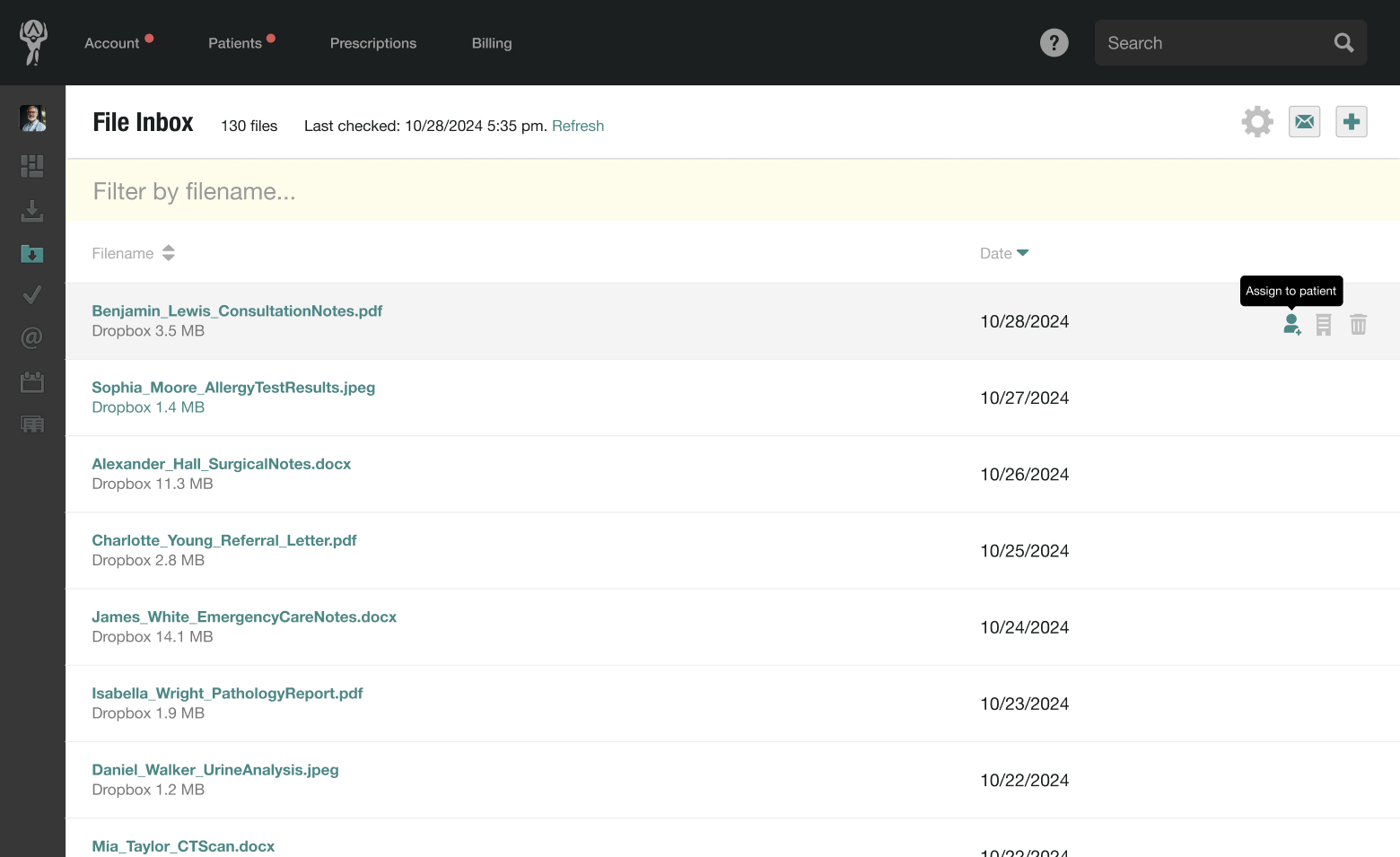
- Head to your Files Inbox by selecting it from the sidebar navigation on the left of the screen
- Next, hover over the item you’d like to assign and click the Assign to Patient button to the right
- Atlas.md will use AI to analyze the PDF and pre-fill several fields with suggestions. These include the patient’s name and a note describing the contents of the PDF, which will appear on your patient’s chart.
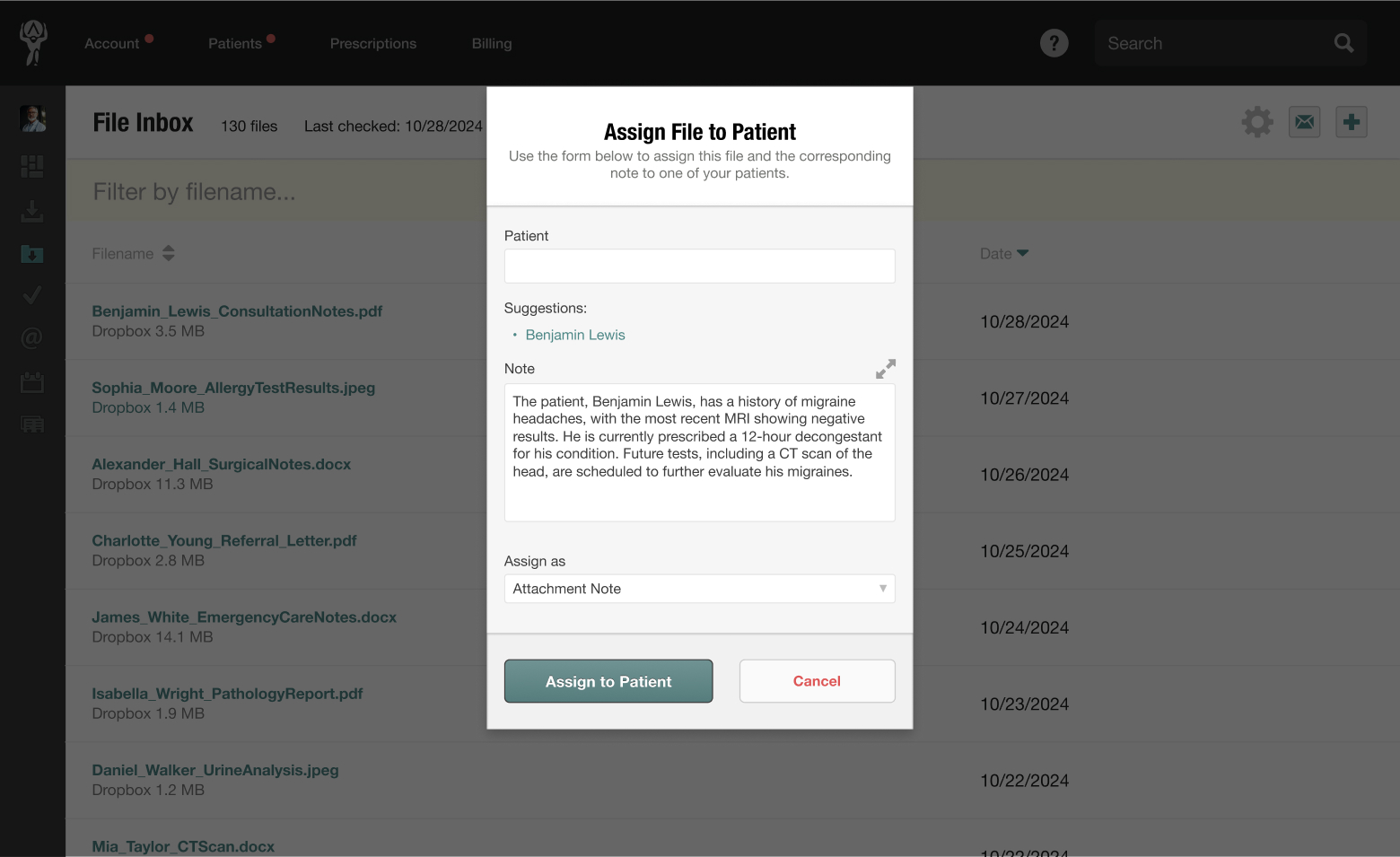
- Click on the patient’s name to accept the suggestion; otherwise, simply type it into the field provided and edit the note’s content if it needs to be tweaked
- Then, using the dropdown menu, select how you would like the file to be assigned:
- As an attachment note
- As a custom lab result
- As a custom lab request
- As a billing note
Once you’re happy with your selection, click Assign to Patient.
The file with the accompanying information will now appear in the patient’s chart.
