




Atlas.md allows you to capture a spoken note or a visit conversation directly to your patient’s chart. The recording is transcribed automatically, so you can get back to the visit instead of hunting down a file later.
Reach for this whenever you’d otherwise pick up your phone or open a separate app to record:
- Dictating a quick note after a visit
- Capturing a conversation with a patient for documentation
- Recording anything you want turned into a summary or SOAP note
Recording from the Chart
Here’s how to capture audio and save it to the patient’s record:
- Open the patient’s chart and click the plus icon in the upper right corner.
- Next, click Audio Recording.
- Press Start Recording. A live sound wave reacts to your voice and a timer counts up, so you can see at a glance that it’s working.
- Use Pause and Resume if you need to step away, and Stop when you’re done.
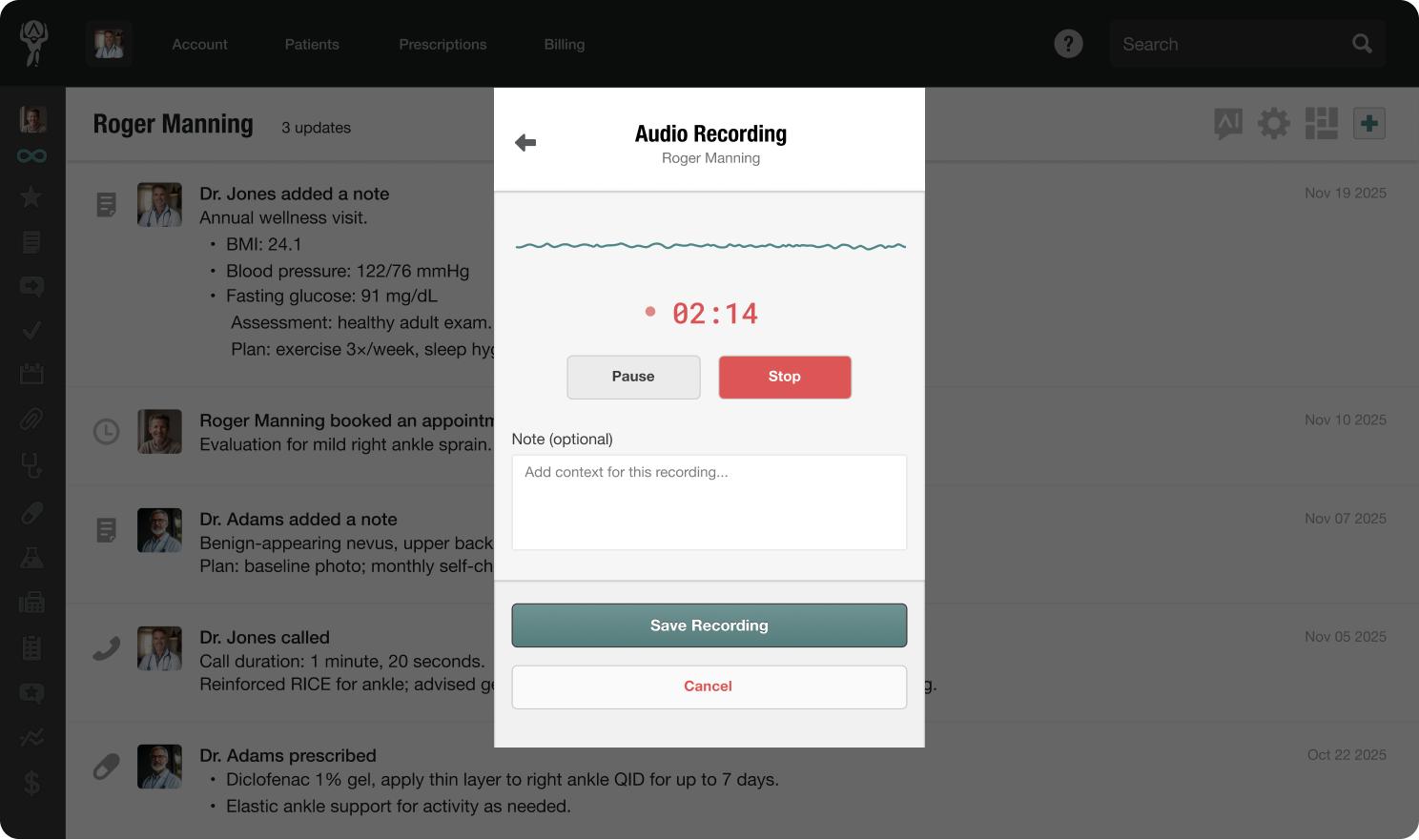
- Play the recording back to check it. If something’s off, you can hit Discard & Re-record and start fresh.
- Add an optional note in the Note field for any context you want attached, then click Save Recording, or choose Cancel if you’d rather not keep it.
That’s it. The audio now lives on the patient’s chart, ready to play back any time.
Once saved, Atlas.md does the rest behind the scenes:
