




Atlas.md Mobile lets you easily send any file, including audio files and PDFs, straight to a patient chart from your iOS or Android device.
Here’s how to do it:
- Find the file you want to send on your device, tap Share, then tap the Atlas.md Mobile icon
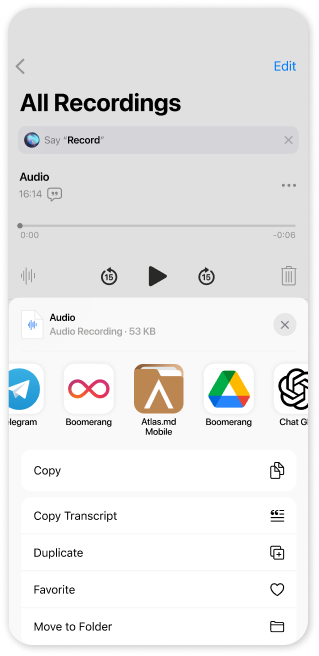
- Next, tap the Patient menu and select a patient from the list whose chart you want to send the file to. Here, you can also add a note describing the file.
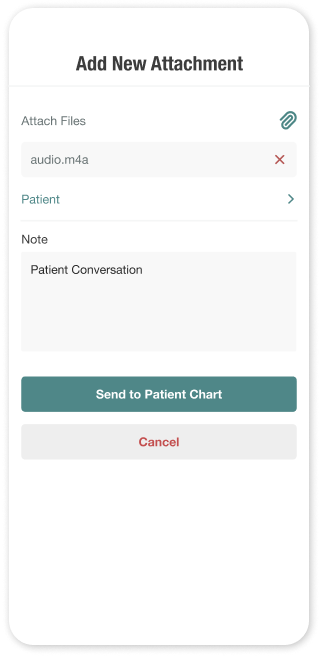
- Once you’re happy with your selection, tap Send to Patient Chart to upload the file to the patient chart.
Once uploaded, the file is available in the patient’s chart in Atlas.md. You can also return to their attachments, lab results, and faxes together in Files within their profile in Atlas.md Mobile.
Learn how to find and add patient files.
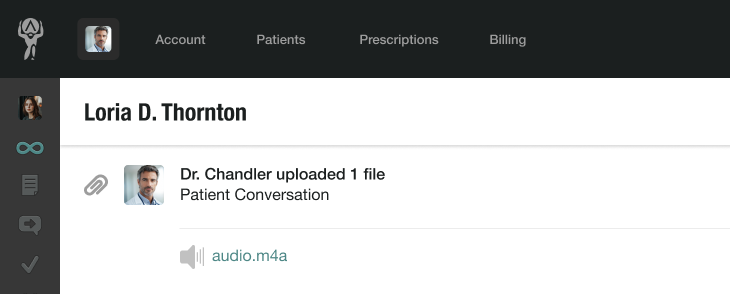
If you’ve uploaded an audio file, the transcript will be available for reference and AI processing, so you can easily summarize transcripts or create SOAP notes.
