




Use @mentions to bring teammates into notes, descriptions, and comments while you work. Atlas.md Mobile also gives you one place to see when someone mentions you, review the surrounding context, and keep track of what still needs your attention.
Mentioning Someone as You Type
- Start writing in a supported text field, such as a note, description, or comment.
- Type @ where you want to add the mention.
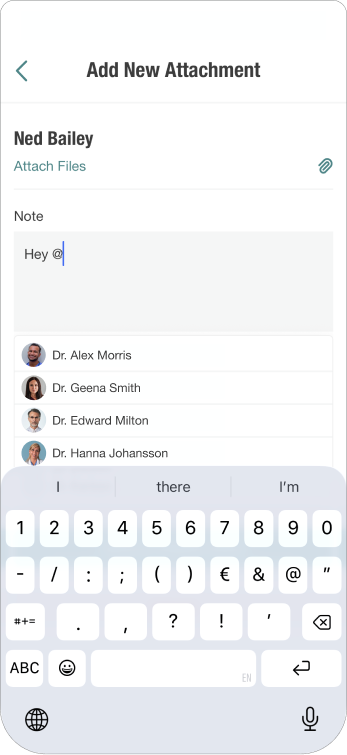
- A compact people picker will appear. Continue typing the person’s name to narrow the results.
- Tap the person’s name to insert the mention, then continue writing.
The mention will remain connected to the text, and the person you tagged will be notified automatically.
Viewing Recent Mentions
To view recent mentions:
- Open Atlas.md Mobile.
- Scroll to the Recent Mentions panel on the home screen.
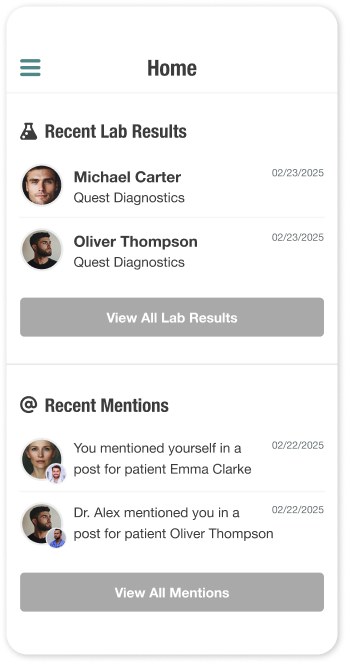
- Tap any mention to view its details and surrounding context.
Viewing All Mentions
To see all unread or past mentions:
- From the home screen, tap View All Mentions.
- Switch between Unread and Read tabs as needed.
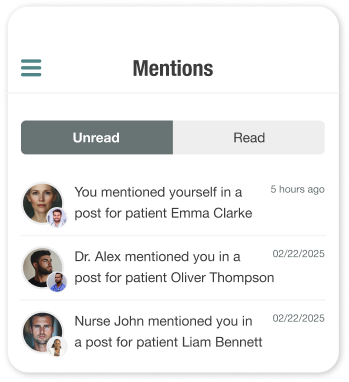
- Tap a mention to open the full detail view.
Reviewing a Mention
When you open a mention, you can:
- See who mentioned you and which patient the mention relates to.
- Read the complete message and tap Show More to expand longer notes.
- Tap Mark as Read once you’ve reviewed it.
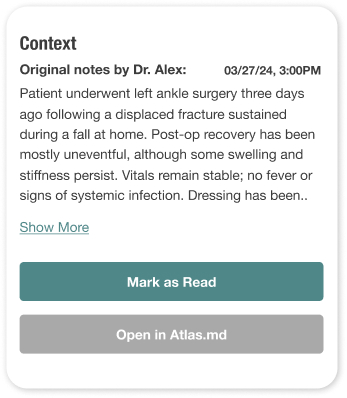
- Tap Open in Atlas.md to open the patient’s chart in the web EMR.
Mentions you read in Atlas.md Mobile are automatically marked as read in your web account, keeping everything in sync.
