




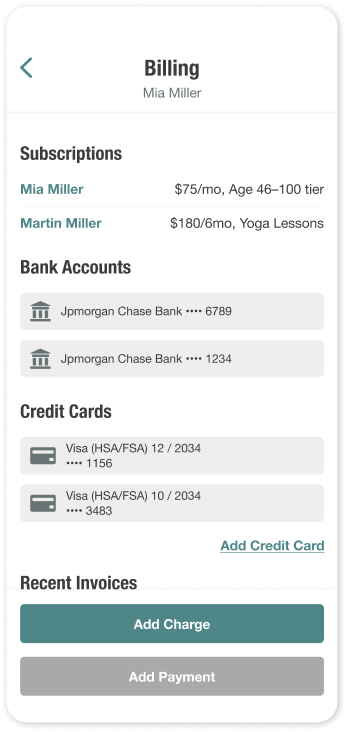
The Billing page in Atlas.md Mobile allows clinic staff to manage patient charges and collect payments directly from a mobile device. From this page, you can:
- Add new charges
- Collect payments
- Manage saved payment methods
- Review invoices
All billing actions performed in the mobile app sync automatically with the Atlas.md web app.
To access the Billing page:
- Navigate to the patient’s profile
- Scroll down and tap More Actions, then View Billing
Adding a Charge
A charge is a service or fee that increases the patient’s outstanding balance.
Charges can be created in two ways:
- Service Fees: preset fees configured in your clinic’s system
- Misc Charge: a manual amount for one-time or non-standard charges
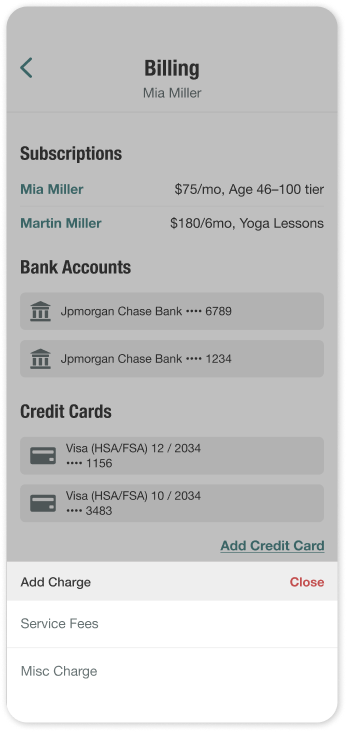
To add a charge:
- Scroll down and tap Add Charge
- Choose one of the following:
- Tap Service Fees to select from preset options,
- Or enter a Misc Charge
- If using Service Fees, select the desired fees and tap Add Service Fees to confirm
- Review the charge details. If needed, tap Edit Service Fees to make changes
- Optionally, apply the charge to the current invoice
- Tap Add Charge to finalize
The charge will appear immediately on the patient’s balance.
To collect payment right away, tap Add Payment, then complete the steps below.
Adding a Payment
Payments reduce the patient’s balance and can be applied in one of two ways:
- Custom Payment: applies an amount toward the patient’s total outstanding balance
- Payment for Specific Charges: applies payment directly to selected charges
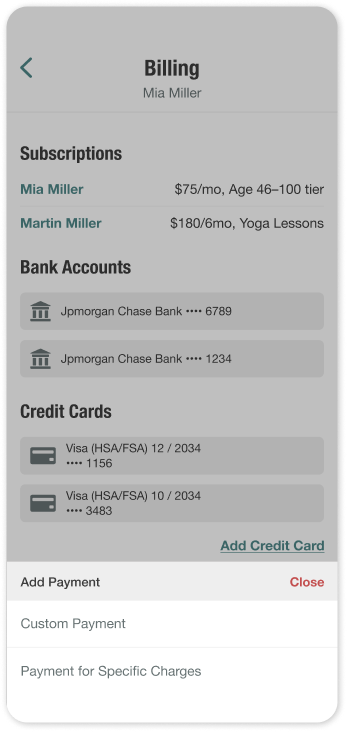
To add a payment:
- Scroll down and tap Add Payment
- Choose how the payment will be applied:
- Custom Payment, or
- Payment for Specific Charges
- Enter the payment amount or confirm the selected charges, then select a Payment Method:
- Online Card Transaction
- Bank Account
- Check
- Cash
- Choose a saved payment method or add a new credit card (if you’re using a card)
- Optionally, choose to send a payment confirmation email
- Tap Add Payment
The payment is recorded immediately and reflected in the patient’s balance and invoice history.
Credit Cards
Saved credit cards are stored on the patient profile and may be used for online card transactions.
Adding a Card
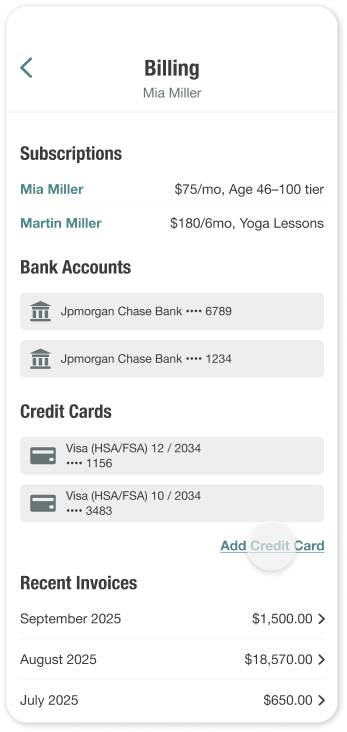
After tapping Add Credit Card on the Billing page, you can add a credit card in one of two ways:
- Enter card details manually: enter the required card information.
- Send a secure link request: send the patient a secure link to enter their card details on their own device.
If entering details manually:
- Enter the required card information (or tap Scan Credit Card on iOS)
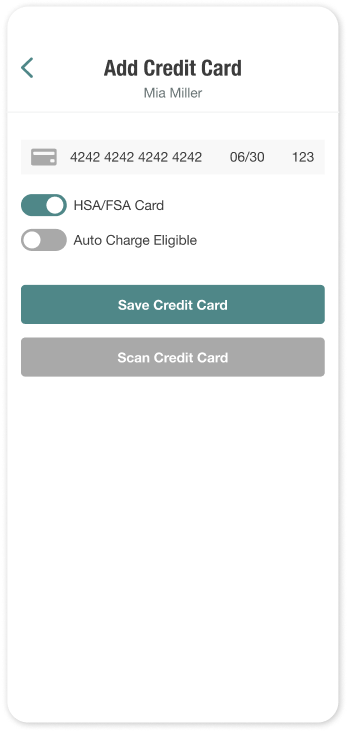
- Optionally, enable additional settings:
- HSA/FSA Card: identifies the card as a Health Savings Account or Flexible Spending Account card for eligible medical expenses
- Auto Charge Eligibility: allows the card to be used for automatic or recurring billing, if applicable
Tap Save Credit Card
If sending a secure link:
- Choose how to send the link (SMS, Email, or Patient Hub)
- Tap Send Link
Once submitted, the card is saved to the patient’s profile.
Managing a Saved Credit Card
On the Billing page, scroll to the Credit Cards section and tap a saved card.
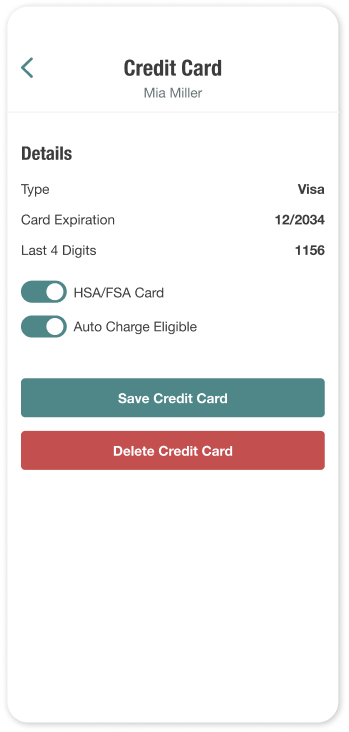
From this screen, you can:
- Enable or disable Auto Charge Eligibility
- Update the HSA/FSA designation (if applicable)
- Delete the card
Changes take effect immediately and apply to future transactions.
Bank Accounts
Saved bank accounts may be used for ACH payments and are stored on the patient profile.
Clinics can send patients a secure request by email or SMS from the patient’s Billing page. Patients can also connect and verify a bank account directly through the Patient Hub. Learn how patients can connect and verify their bank account.
Managing a Saved Bank Account
On the Billing page, scroll to the Bank Account section and tap a saved bank account.
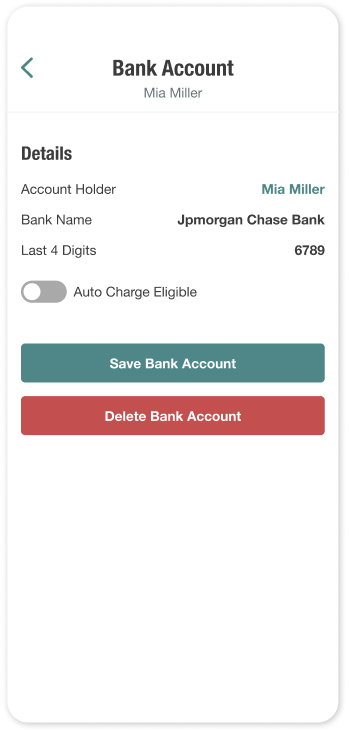
From this screen, you can:
- Enable or disable Auto Charge Eligibility
- Delete the bank account
Changes take effect immediately and apply to future ACH payments.
Viewing Invoices
Invoices provide a detailed summary of charges and payments associated with the patient’s billing activity.
From the Billing page, you can view a list of all invoices. Tap any invoice to review its details, including associated charges and payment history.
