


You can find and complete forms your clinic sends you in the Atlas.md Patient App. Pending forms appear on your home screen, and completed forms stay available so you can look back at your answers and when you submitted them.
Finding a Form
To find a form:
- Open the Atlas.md Patient App.
- On the Home screen, look for forms waiting for you to complete.
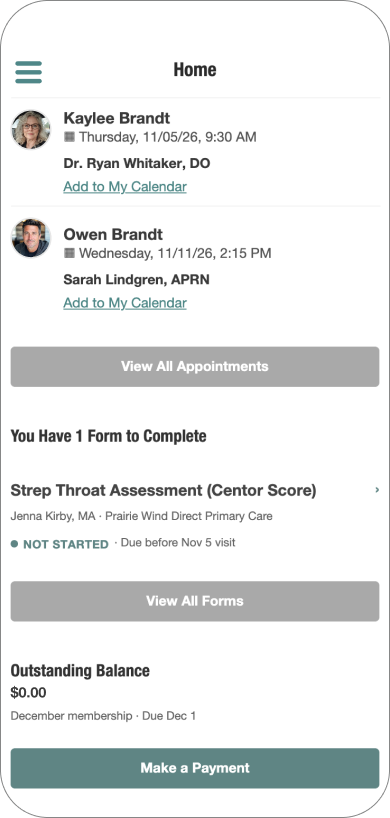
- Tap a form to open it, or tap View All Forms to see the full list.
In the list, each form shows who sent it and whether it’s marked Not Started or Completed. Pending forms also show when they expire.
Answering and Submitting a Form
To complete a form and send your answers to your clinic:
- Open the form you want to complete.
- Answer the question on the screen, then tap Next Question to continue through the form.
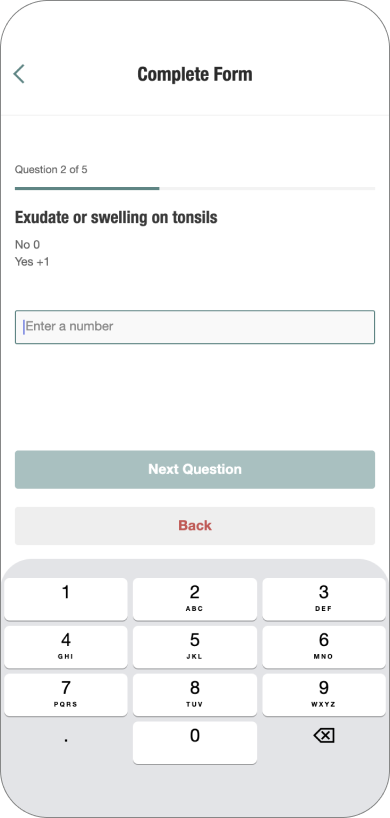
- On the Review your answers screen, check your responses and tap Edit beside any answer you want to change.
- When you’re ready to send your answers to your clinic, tap Complete Form.
- You’ll see a Form Successfully Submitted confirmation. Tap Back to Forms to return to the list.
Looking Back at Your Answers
In the Forms list, tap a form marked Completed to open your submitted answers. You can also see the date you submitted it, so you have a record of what you shared with your clinic.
