




When a patient needs to submit the same form multiple times, such as a daily pain log or weekly mood check, you don’t need to send a fresh invitation each time. Sharing a form for ongoing use gives the patient lasting access, so they can open and submit it on their own schedule as often as needed.
Use ongoing form access whenever you want a patient to track something over time, rather than answer once, such as:
- Daily symptom or pain logs
- Mood or sleep check-ins
- Recurring questionnaires between visits
Granting Ongoing Access from the Patient Chart
Start from the patient’s chart and select the form you want them to keep using.
- Open the patient’s chart and click the plus icon in the upper right corner, then Form Answer.
- Select the form from the dropdown. If the form you need does not exist yet, you can build a custom form first.
- Click Share for Ongoing Use.
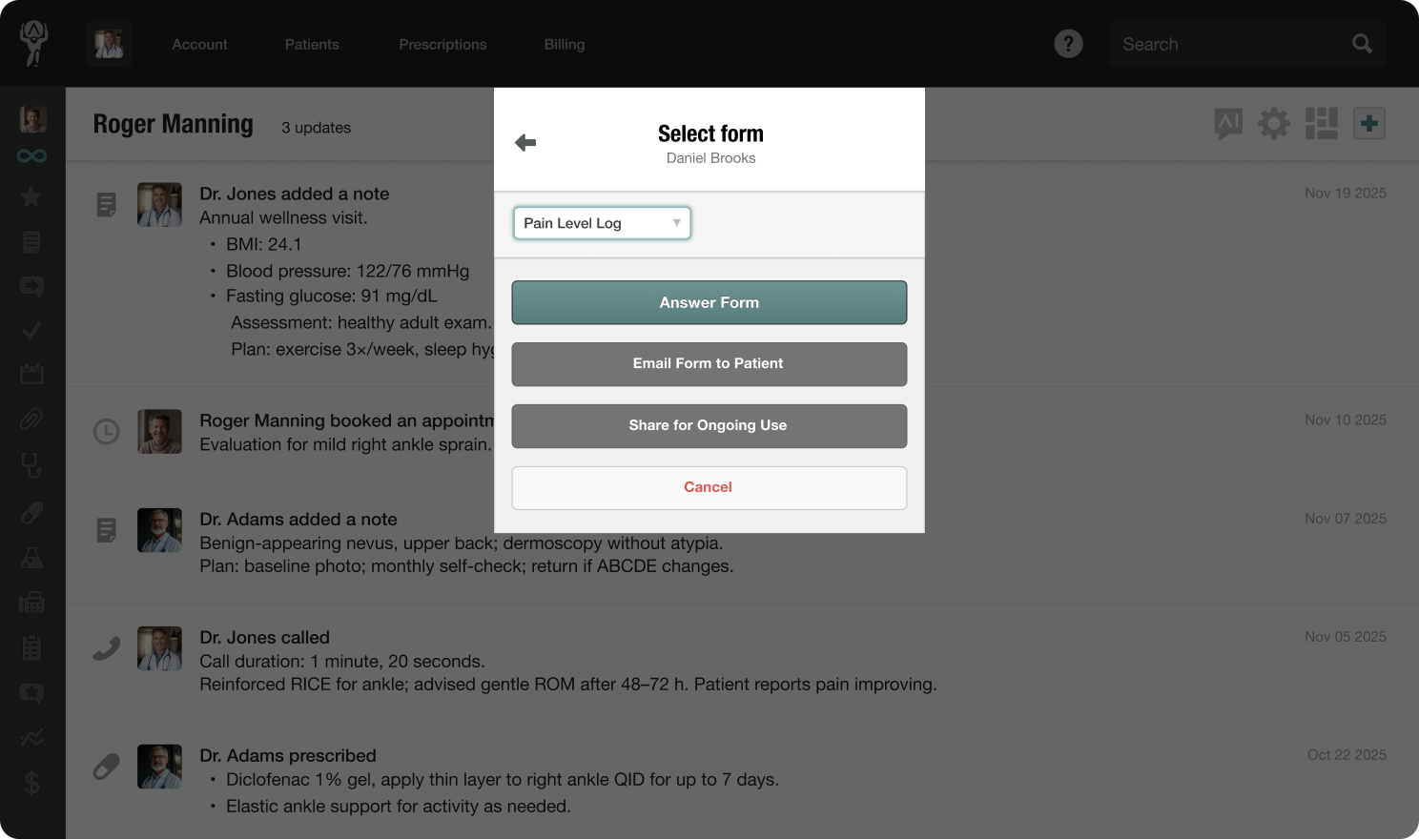
- In the confirmation dialog, check that the right patient and form are listed, choose the patient’s method of contact, and add a custom note if you would like to explain what to do.
- Then click Share for Ongoing Use to activate access.
The patient can now open and submit that form repeatedly until access is removed. You don’t need to send a new invitation each time.
Viewing and Managing Patients with Ongoing Access
Each form keeps its own roster, so you can quickly see who is using it, how recently they responded, and how many times they have submitted it.
- Open the form from the Forms page.
- Scroll to the Patients with Ongoing Access to this Form section at the bottom.
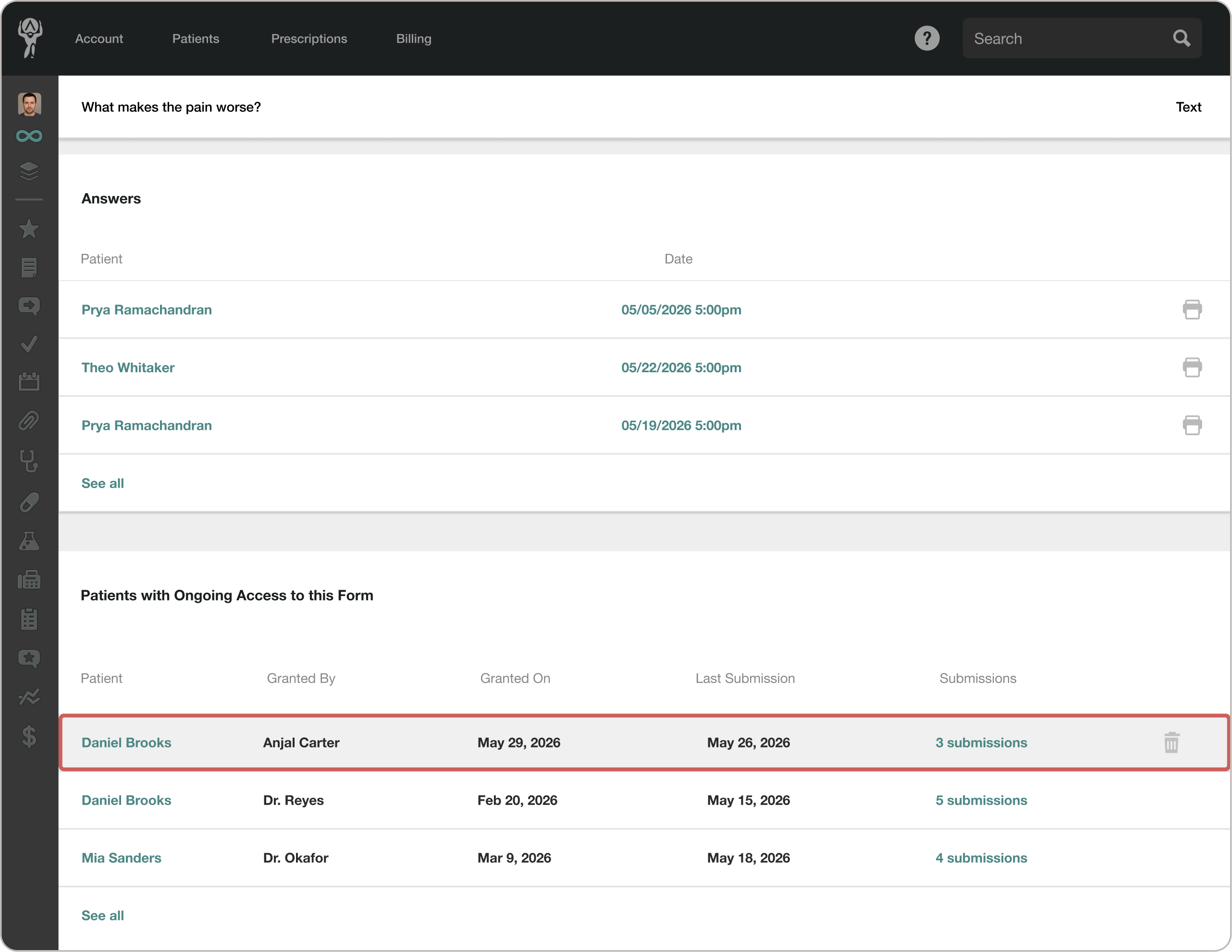
- Review each patient’s row.
From this section, you can see who granted access, when access was granted, the patient’s last submission date, and their total submission count. You can also click a patient’s name to view the form in more detail.
If more patients have ongoing access than fit in the preview, click See all to open the full Patients with Ongoing Access view. From there, you can search by patient name and remove access when a patient no longer needs to submit the form.
After access is removed, the patient can no longer open or submit that form. Anything they have already submitted stays on their chart.
Note: Removing access takes effect right away, so only remove it once the patient is done tracking.
Reviewing Previous Submissions
The submission count gives you access to everything a patient has logged so far.
- In the roster, click the submissions link on a patient’s row, such as 5 submissions.
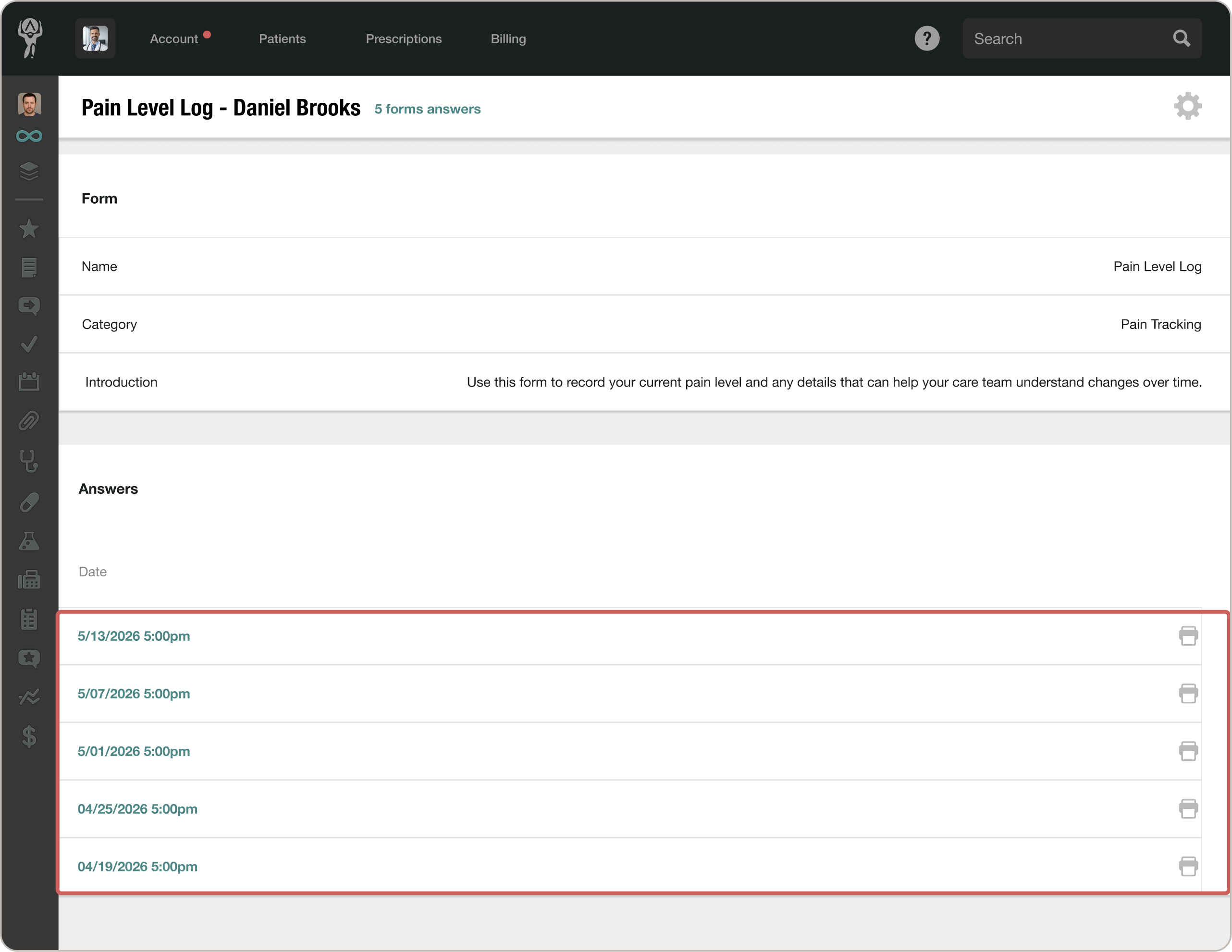
- You will see the patient’s answers for that form, listed by date.
- Click any date to open that submission. From there, you can also jump back to the related chart entry.
Because this uses the same form answers view you already rely on, there is nothing new to learn. The full history lives where you would expect it: on the patient’s chart.
