


Atlas Balance
Help Center
How Do I Issue a Spending Card?
You can issue virtual or physical spending cards for your Atlas Balance account directly from your dashboard. These cards can be used for clinic purchases, subscriptions, travel, or anything else you need to run your practice.
From the sidebar navigation, click Cards, then select Issue New Card in the top-right corner.
Choose whether you want a physical or virtual card.
Next, decide who the card will belong to:
- Add a new user by clicking Add New User and entering their details, or
- Select an existing user from your list.
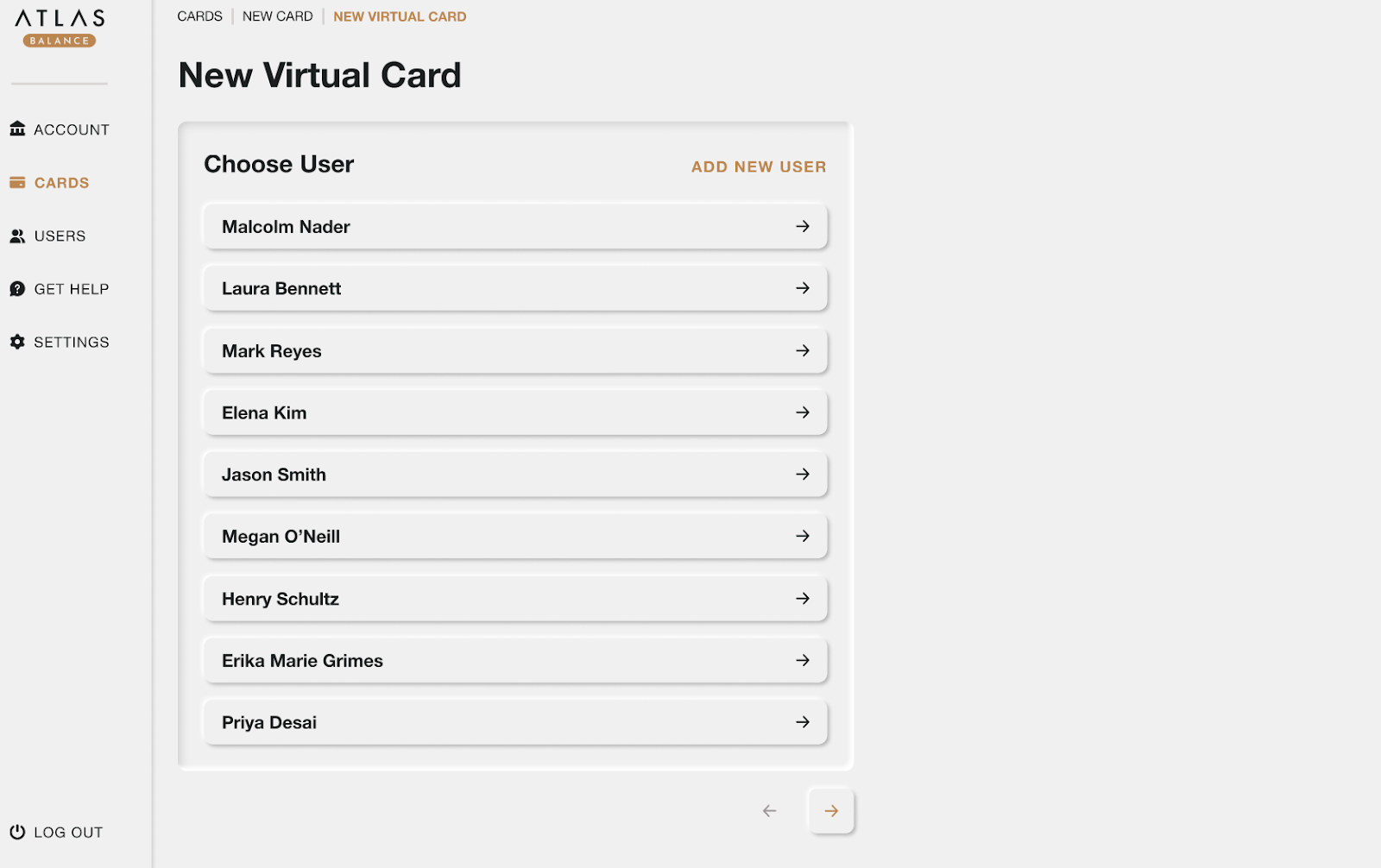
Fill in the information you want printed on the card, including:
- Name
- Phone Number
- Date of Birth
- Address
When everything looks correct, click Issue New Card.
The card will now be created and sent to the user. They’ll also receive an email with more details about how to start using it.
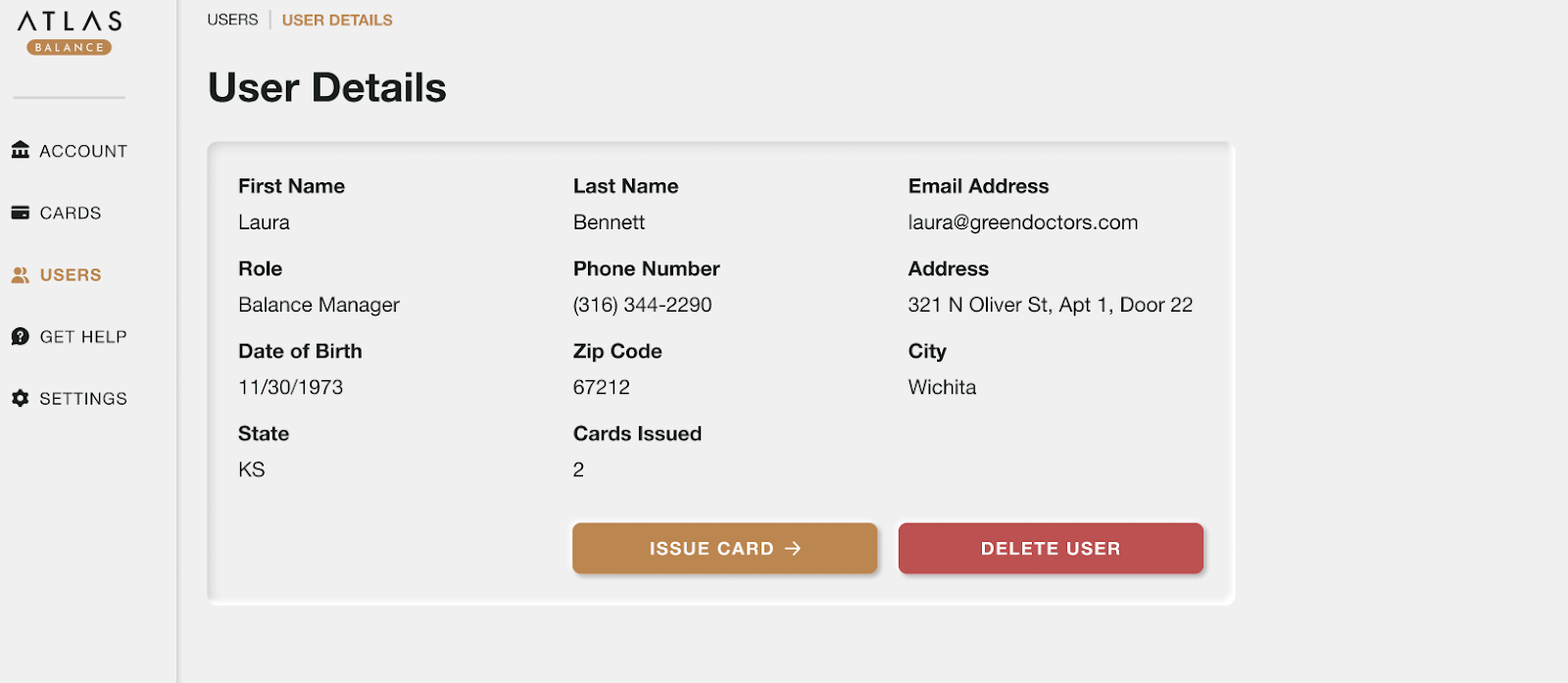
You can also issue a spending card directly from a user’s profile. Just click Users in the sidebar, select the user, then click Issue Card and follow the same steps as above.
Card Features
- Accepted anywhere Visa® spending cards are supported.
- Works online, in person, or over the phone.
- Supports Apple Pay and Google Pay (for virtual cards).
- Optional spending controls and transaction tracking.
How Many Cards Can I Create?
You can issue multiple cards, each with its own purpose or assigned to a specific team member. There’s no fee for virtual cards. Additional fees may apply for physical or replacement cards; these will be displayed during setup.
